Tool Setup Guides
Get every class tool installed, organized, and ready before lesson one.
Use these setup checklists for Photoshop, Illustrator, CapCut, VS Code, Figma, and SolidWorks so class time goes into making work, not hunting for missing panels or broken exports.
Adobe Illustrator
CapCut
Visual Studio Code
1
Check your device
Confirm operating system, storage, RAM, and internet access before downloading large installers.
2
Install from trusted sources
Use official stores, licensed school access, or vendor portals so updates and sign-in work correctly.
3
Create project folders
Keep source files, exports, assets, references, and backups separate from the first day.
4
Run a test export
Before class starts, open the tool, create a small file, export it, and save it in the right folder.
Software Setup
Six practical setup guides for the tools used across SCDS courses.
Photoshop Masterclass
Adobe Photoshop
Photo editing, posters, digital art, and mockups
Install Creative Cloud, then install Photoshop from the Apps tab.
Sign in and confirm Photoshop opens without trial, payment, or license warnings.
Set scratch disk space and keep at least 20 GB free for class files.
Create folders for PSD working files, exports, fonts, and source images.
First test: Open a new 1080 x 1080 px document and export a PNG test file.
Illustrator Training
Adobe Illustrator
Vector logos, icons, branding, print artwork, and illustrations
Install Illustrator through Creative Cloud and launch it once before class.
Enable common panels: Properties, Layers, Pathfinder, Align, and Swatches.
Save a workspace named SCDS Vector so your panels are easy to restore.
Create a test A4 CMYK document and a web RGB artboard for comparison.
First test: Draw three simple vector shapes and export SVG plus PDF copies.
CapCut Masterclass
CapCut
Short-form video editing, captions, templates, audio, and effects
Install CapCut desktop or mobile, depending on the device you will use in class.
Sign in so projects, templates, captions, and cloud assets remain available.
Confirm your device has enough free storage for video cache and exports.
Create folders for raw clips, music, exports, thumbnails, and project backups.
First test: Import a 10 second clip, trim it, add captions, and export 1080p vertical video.
Vibe Coding
Visual Studio Code
Web development, React projects, extensions, Git, and deployment work
Install VS Code and add the recommended extensions for ESLint and Prettier.
Install Node.js LTS and confirm npm runs from the integrated terminal.
Connect Git so you can commit class projects and portfolio code safely.
Create a projects folder with separate directories for practice and final work.
First test: Create an HTML file, open it in the browser, then make your first Git commit.
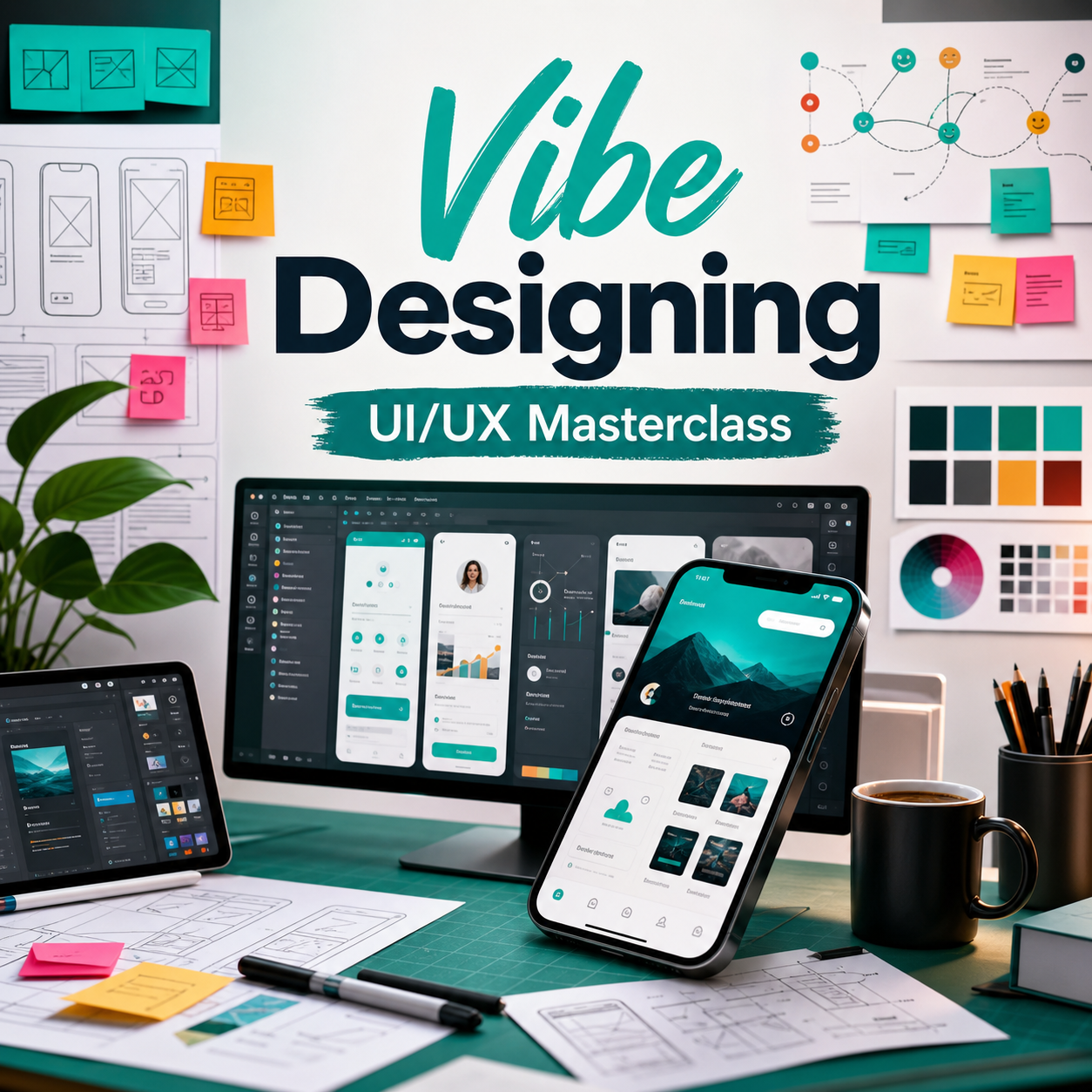
UI/UX Masterclass
Figma
UI design, wireframes, prototypes, design systems, and handoff
Create a Figma account and install the desktop app if your computer supports it.
Set up a class workspace with pages for research, wireframes, UI, and prototype.
Install helpful community resources only after checking they match the brief.
Practice sharing a file link with view access so mentors can review your work.
First test: Design one mobile login screen and connect a second screen in prototype mode.
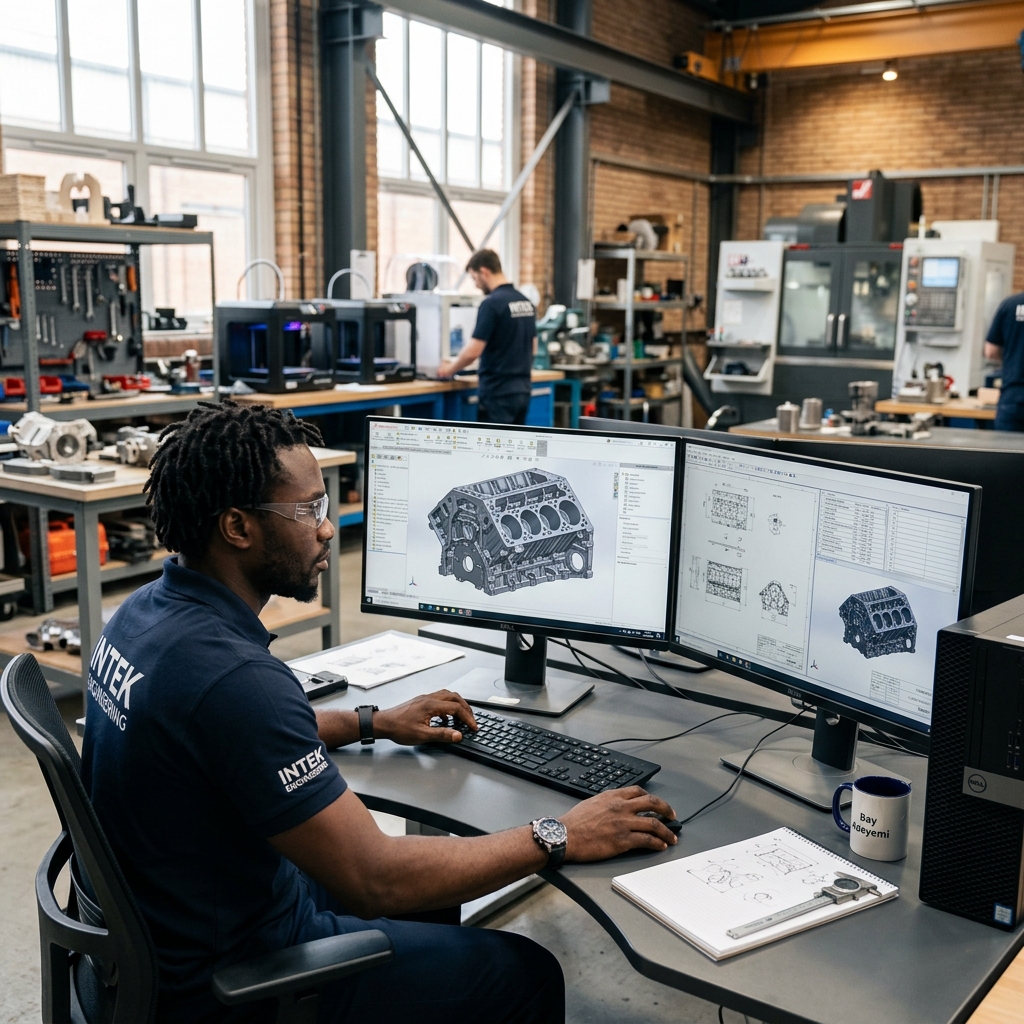
SolidWorks for Engineers
SolidWorks
3D CAD, part modelling, assemblies, drawings, simulation, and renders
Install the correct SolidWorks version from your school, employer, or licensed source.
Confirm your graphics driver, storage, and RAM meet the class project requirements.
Set units to MMGS unless your assignment brief asks for another standard.
Create folders for parts, assemblies, drawings, renders, and reference dimensions.
First test: Model a fully defined rectangular bracket and export a PDF drawing sheet.
Ready for Class
Finish this checklist before the first live or recorded lesson.
Setup is complete when you can open the app, create a test file, export it, and find it again without help.
1
You can open the software without account or license blockers.
2
You know where class files and exports will be saved.
3
Your first test file opens again after closing the app.
4
You can share or upload the exported file for review.
5
Your device has enough battery, storage, and internet for lessons.
6
You have a backup plan for large projects and final submissions.
File Hygiene
Good setup also means clean files.
Working files
Keep this folder named clearly for each class project.
Final exports
Keep this folder named clearly for each class project.
Reference assets
Keep this folder named clearly for each class project.